Showing posts with label Web Marketing. Show all posts

Monday, August 15, 2011

How to Setup Your Dashboard in Google Analytics

Ah, the GA dashboard. It's the first screen you see when you log-in and click over to your profile. Often times I bypass this screen and go directly to Traffic Sources. That is, until recently. And that's because I finally setup my dashboard screen. And you can too. So save yourself a click and get all the good stuff in one spot with the below steps!

First, I decided what I wanted to see the most. For me, the following reports are most important:

1. Traffic sources
2. Keywords (from Google, Bing, Yahoo, etc.)
3. Search terms (Etsy internal search)
4. Top items being viewed.

Once you've made your list, you can begin adding them to your dashboard. To do this, navigate to the actual report and click "Add to Dashboard" at top. Go through your list and do this for each report. Time range does not matter. (Click image below to enlarge.)

Add Item to Dashboard in Google Analytics
Now visit your dashboard by clicking "Dashboard" in the left main navigation. Your Dashboard will open up with your newly added reports. Hover over the grayed bar with the report name in it to move it up or down and left or right. You can also remove reports you don't use. For me, I removed the Map Overaly, Visitor Overview, and Goals Overview. Keep in mind you want this to be quick and concise, so remove any extraneous reports you never use or don't care about. And just keep in mind that everything can be re-added.

Use the below video to visualize the directions above.


Get more free online marketing advice for Etsy. Subscribe! It's free, after all. And we all like free.

Monday, August 8, 2011

Google Analytics for Etsy QUICK Tip: Use the Annotations Feature or You'll Be Sorry!

So, quick post today folks with a handy little GA tip. Run promotions? Get spikes in your Etsy traffic? Use the annotations feature in GA to remind yourself what went on during certain times to make interpreting historical data, spotting trends, or remembering successes easier. See the enclosed YouTube video on how to setup an annotation. Doing so is quick and easy, and really makes the data in there more meaningful!


Get more free online marketing advice for Etsy. Subscribe! It's free, after all. And we all like free.

Friday, August 5, 2011

+2,000 Visits in One Day with Stumble Upon!

So, way back when, StumbleUpon ("SU") was all the rage. People didn't think about putting content on the Internet without "stumbling" it. Then, other *new* shiny sites (like Twitter) surfaced and stole some (or almost all) of StumbleUpon's glory.

Well, I'm happy to say StumbleUpon is back and boy is it kicking! As a web marketer by career, I have the advantage of being on the leading edge of new trends. And when I saw a very large client of mine receiving tons of traffic to their site from SU, I immediately thought of using it for my Etsy shop.

So, let me tell you, the results are in and the results are good! Below is a snapshot of my Etsy traffic this month. Notice the tremendous spike? One of my items when viral! (Click image to enlarge.)

Stumble Upon Traffic Spike


This spike meant 2,200 visits in one day. That's huge!

Some may say the traffic isn't all that qualified and that's true. Visits from SU trend to bounce more and view less pages. But I think the intrinsic value of SU is its ability to touch a croud that may not have ever heard of Etsy, let alone you.

Case in point: I stumbled this patina anchor necklace. 3 hours later someone posted in on their Tumblr. Minutes later someone bought my anchor necklace. Pow! Gotta love it.

Here are the Pros' and Cons of Stumble Upon.

Pro's
1. EASY to use. Install the toolbar and you're off.
2. You can Stumble your own stuff.
3. You can pick categories to surf. I do this sometimes to get inspired.
4. Other people (bloggers, buyers, etc.) also surf categories for cool content. Stumbling your own stuff puts it in front of people to blog, buy, & love!
5. HUGE traffic if things go viral.

Cons
1. Traffic can be unqualified at times.
2. You can only Stumble something once.
3. Planning must go in to when you stumble something. If you stumble your item during slow times, not enough sharing will happen and your item will get "buried".
4. Traffic not sustainable. Without regular stumbling of new things, traffic tends to taper off.

Overall, for a minimal investment of time, Stumble Upon is great! And although it's not a sustainable traffic solution, it will help get your pieces out there to people who are interested. And who knows, maybe they will link or write about you and help you build traffic that way.

To learn more about StubmleUpon, checkout this video.


Give it a go and tell me how you do!

P.S. For those new to StumbleUpon, see this article for a short what is and how to.

Monday, August 1, 2011

Where are your Etsy sales coming from?

So, by now you all should be aware that you NEED to get Google Analytics ("GA") running on your Etsy shop. If you haven't yet, see here. Also read this article on understand your traffic sources. In order to proceed with the rest of this article, you must have GA set up.

Ok. So you've got GA running and you're using my Google Analytics for Etsy tutorials to better interpret the data. Great. Today we're going to go over how to determine where your sales are coming from. And unfortunately, Etsy does not have the e-commerce feature turned on, so getting at this data is tricky and not 100%, but its the best we've got. So without further ado, here's how to figure out where your Etsy sales are coming from.

1. Log into Etsy and make a list of the items you sold and the dates they sold. Keep note of multiple items in one order.
2. Log into GA.
3. Adjust the date range to fit the first day in question. (We are working day-by-day.)
4. Click "Content" and then "Content by Title".
5. Find your first item sold that day & click the item's title.
6. On the next screen, click the drop-down box that says "None" and select "Source/Medium". You will now see all the possible sources that brought in the sale.
7. Look over the list. Any visit to the item that lasted only a couple seconds can be thrown out. Jot down the remaining sources.
8. Do this for your remaining sales. For sales of multiple items in one order, look for overlaps in traffic sources. Remove any that only delivered a view to one item.
9. Once you've done this for your full list, tally the sales per source. You should now have a rough list!

Now, I will say that this methodology is very crude. It assumes people buy on their first visits to your shop and it attributes the sale to the most recent source and rejects other previous sources. (i.e. found your shop through organic, favorited it, then came back directly and bought days later). BUT, it's the best there is and it should give you a trend, at least, to go by. Do this for a month or week at a time to get enough data. Then use the data to your advantage! And as usual, comment with questions!

Hope this helps!
Get more free online marketing advice for Etsy. Subscribe! It's free, after all. And we all like free.

Monday, July 4, 2011

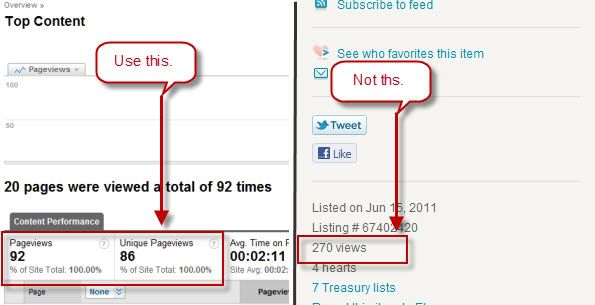
Etsy Item Views vs. Google Analytics Pageviews: Which to monitor?

(Repost of my article for Handmadeology.)

Traffic. Besides sales, it's the thing we crave as shop owners. We live to track it, measure it, and chop it up into little tiny pieces to scrutinize it.

With Etsy, you have two main options in measuring your item's traffic:
  1. Item views on the Etsy item page.
  2. Pageviews through Google Analytics.
A recent post in the Etsy forum has brought to light a common issue when using what is called "server-side" tracking: it will incorrectly count "bot" (search engine & other crawler) visits as well as visits from you. See this thread for a full explanation from Etsy. This is bad, since it will inflate your item pageviews, making it look like it's getting more traffic than it is. And even with a fix in sight, there is a better tracking solution!

The solution is (drumroll please!): Google Analytics. (I bet you knew I was going to say that.) Why? It's browser-based, which simply means that it can filter out visits from automated programs. In fact, it does this automatically. You can also filter out visits from yourself, either at work, from home, or anywhere else you access your shop. Need to setup Google Analytics? Check out this Etsy how-to. Need to exclude visits from you? See this Google tutorial.

Google Anayltics PAgeviews vs. Etsy Views

So, we know that Google's data is more sound than the data available on the Etsy page. Here's a quick run-down on how to access pageviews through Google Analytics and some other quick tips that will make you never look at Etsy-provided pageview data again!
  1. Log-in to Google Analytics.
  2. Click "Content". Then "Top Content" or "Content by Title" ("Top Content" lists your items by page URL. "Content by Title" lists you items by your Etsy title).
  3. You should now see "Pageviews" and "Unique Pageviews". "Pageviews" means all views of you item, even in the same visit multiple times. "Unique Pageviews" means pageviews excluding items viewed multiple times in the same visit. The more accurate of the two is obviously Unique Pageviews.
  4. Click the blue URL or name of the page to load the next page. Here you will see only data for the specific Etsy item you clicked on. If you then click "Entrance Sources" under "Landing Page Optimization", you will see the traffic sources that brought people to this item. Pretty cool huh!
Use this data to more accurately understand your most popular items and how people are getting to them. You can then optimize your item descriptions and targeting to sell better to your visitors, as well as add new marketing sources to your arsenal.

One last tip: click the arrow with the box to the left of any blue link within Analytics to open that page in a new tab. This is great for investigating traffic sources without have to type in the URL or leave Analytics.

Good luck and have fun!
Get more free online marketing advice for Etsy. Subscribe! It's free, after all. And we all like free.

Monday, June 27, 2011

Marketing Monday Quick Tip: Down the Rabbit Hole We Go!

Recently I wrote about using Google Analytics to find new marketing opportunities for your handmade shop. If you haven't read it, read it here: Using the Referring Site Report in Google Analytics. (It was also featured on Handmadeology. Yay!)

From the above exercise, you will most likely find blogs that deliver quality traffic to your shop. When you visit these blogs, also look through the blog author's "Blogroll", "Blogs I Love", "I'm reading", or whatever they call their blog love list. Visit these blogs and evaluate them for other marketing opportunities. This is a great way to find related sites that may not have found you yet!

I call this the "Rabbit Hole" technique, since it will most likely send you through many twists and turns and open up new sites you never knew existed. But it's a fun research project for sure. Just set aside some time and be structured about it!

~Hope this helps~

Get more free online marketing advice for Etsy. Subscribe! It's free, after all. And we all like free.

Thursday, June 23, 2011

Poll: What advertising has worked best for your handmade shop?

The enigmatic question for us handmade shop owners: What form of advertising works? Today I've set out to answer that question. Answer this quick poll and help us all advertise ourselves better!


Subscribe to get updated on the results!

Tuesday, June 21, 2011

Using the Referring Sites Report in Google Analytics to Build Traffic and Revenue to Your Etsy Shop

Google Analytics is a great tool to help you be successful on the Web. Today I'd like to introduce you to the Referring Sites report--a report that will help you find other sites to leverage in order to continue to build your customer base. But before I go any further, I'd like to remind you (or introduce you) to the fact that the way Etsy has Google Analytics integrated on our shops isn't completely correct. Read this post on Understanding Traffic Sources to Your Etsy Shop to see what I mean.

Now that I've got that out of the way...

Building links and awareness outside of Etsy is just as important as engaging the community within Etsy. This is because:

1. Search engines like links for SEO. The more quality links you have, the more traffic you get from them.
2. Links bring in more referring traffic.Traffic brings in sales.
3. Links build awareness, which could equal shop features, giveaways, and other opportunities.

So, where can you go to quickly find quality sites to engage for links? The Referring Sites report!


How to Get to the Referring Sites Report

Log-in to Google Analytics (GA) and select Traffic Sources-->Referring Sites from your left navigation. Make sure your date range is long. I'd say view at least 1-2 months worth of data.


Reading the Referring Sites Report

Determining Which Sources Are Best
Ok. So now you're looking at your report. What you're looking for are sites that deliver quality and engaged traffic. How do you measure this? By looking at Pages/Visit, Avg. Time on Site, and Bounce Rate.

Here are some definitions of these:

1. Pages/Visit: The average number of pages viewed during a visit to your site.

2. Avg. Time on Site: The average duration of a visit to your site. 

3. Bounce Rate: The percentage of single-page visits (i.e. visits in which the person left your site from the entrance page).

Ok. So we're looking for quality sites that are delivering us traffic. Quality sites are those that give us plenty of pages/visits, a high time on site, and a low bounce rate (50% or less). Of course, these values will be relative based on how your shop performs, so see how how users behave and choose your values accordingly.


Sorting Your Report
A really quick way to get at the best data is by sorting. Pressing the column name will sort your sources from lesser to greater or greater to lesser.

To sort your data even more granularly, use the "Advanced Filter" option at the bottom of your screen. Set your visits to greater than 10 (or higher if you get a lot of traffic) by clicking the down arrow in the green source box and selecting the "visits" radio button. Then press the down arrow in the "Less Than" box and select "Greater Than". Enter "10" in the open field. Now select "Add New Condition" and follow a similar process for bounce rate. Set bounce rate to less than 50%, or higher if your shop's average bounce rate is higher. Press "Apply Filter" and your best referring sites should come up. If the list is short, broaden your filter values by selecting "Edit Filter".

Click image to enlarge.


Cleaning the Data

Now, remember how I said Etsy's GA integration isn't 100% accurate. At this point, you need to make sure these referring sites actually sent traffic directly to you. So, click the blue referring site name. This will open another page where there are URLs of the page of the referring site that delivered traffic to you. Click the pop-out arrow to the left of the page URL and that page will open in a new window. Scour the page looking for a mention of your site. Use Ctrl+F to find your link or shop name. If it's there, this traffic source passes the test. If not, review the site. Does it match your market or niche? If it does, add it to the list anyway!

Click image to enlarge.


Using the Data You've Found With This Report

So, now you have your site list. Now you need to figure out what to do with it. There are a few options, but get creative.

1. Engage with the community by commenting and sharing.
2. Buy ad space.
3. Hold a giveaway or other promotion.
4. Fan, follow, and subscribe.

Hope this helps. And, as always, post comments and questions!


Get more free online marketing advice for Etsy. Subscribe! It's free, after all. And we all like free.

Monday, June 13, 2011

Become an Etsy Tagging Pro with the Site Search Report in Google Analytics!

Ah, Google Analytics, or "GA" as I will call it from hereon out. Scary to some, but an invaluable tool for making your Etsy shop more efficient. I know some of you may still be procrastinating on setting up an account. If I'm talking about you, run (don't walk) to your computer and do it. Do it now! Don't know how? Use this Etsy setup guide. Follow it closely as it diverges from the normal GA setup.

GA has a lot going on. Being a web marketer by profession, I'd like to share some of the most important things GA has to offer for your Etsy shop. Today I'd like to talk about the Site Search report.


What is the Site Search Report


From Google:
Site Search reports allow you to see how people search your site. You can find out what your visitors search for and which pages they visit as a result. You can also see where they begin their searches, how many pages they visit after searching, and which product groups they are most likely to search.
For the Etsy integration, this will tell you which keywords (e.g. tags) are bringing in traffic to your shop!!


How to Setup Site Search to Work for Etsy

See #2 here.


How to Access the Report in Google Analytics

On your main report dashboard, go to Content-->Site Search-->Search Terms. Done!


How to Leverage the Data

To best use this report, look at blocks of time. Weeks and month(s) work best. What do you see? Any patterns?

In the below screenshot (click to enlarge), it's obvious that "anchors" is a hot term right now. So I made sure all my anchor jewelry had this in the tags, as well as the item description. This also tells me that I should consider expanding my items using anchors since its a popular search obviously in high demand.

What's also important are the words that aren't here. Take note of the tags not bringing in traffic. These may be keywords that just aren't popular and should be removed to test other keywords that might work better for you. In my example, I might try using colors less often, since despite my heavy tagging, none of my top search terms include a color.

how to use the site search report in google for etsy

Hope this helps & contact me with questions!

Get more free online marketing advice for Etsy. Subscribe! It's free, after all. And we all like free.

Wednesday, June 1, 2011

Taking the Perfect Shop Photo: A Compilation of Photo Tips & Resources for Your Etsy Shop

The quest to take the perfect shop photo. It never ends. And it can become obsessive. But luckily as you learn more, you improve. This will be a running post on the tips and tricks I've learned along the way and what really works. Feel free to comment with your own findings & links! It'll help us all get better.

Get to know your camera. Even on a point and shoot, you have settings that can help you control the final product. The beginner section at Digital Photography School is great. Try the forums too! I've found the exposure compensation button that looks like this "+/-" really helps bring light in.

Don't be afraid to edit! Picnik is a wonderful and easy tool to fix and crop your photos. I HIGHLY recommend it.

Macro & close-ups. Use the macro function on your camera to get good close-ups. If you can't get close enough, take a good, clear picture and use Picnik to crop and bring item closer. Works like a charm! Trust me. Try it.

Lighting. I've found a light tent can do wonders and it's cheap!

Play. Some of my best shots come from wondering, "What will it look like when I do this?"

Less is More. Let your items breathe.

Be aware of photo pixel sizes. Seriously. Check you camera. Large files may take forever to upload, if they upload at all, and then they'll take up the whole screen when someone goes to view them. Not good. Try to shoot for a finished photo that's 572 wide by 428 high. Adjust with Picnik.

Turn off the flash! Easy enough.

Wednesday, May 25, 2011

Wearing Handmade? We Want to Know What It Is!

Hi all. I've got a fun new way to share the handmade love on Twitter. I do a daily post called "Handmade What I'm Wearing". I do this for any handmade items I'm actually wearing or wish I was wearing for the day. I then use the #hmwim hashtag to create a Twitter search feed for it.

How To Use This To Your Advantage


1. Follow me on Twitter
2. Retweet my initial wim post with a link to the handmade item you're wearing that day.
3. Add in the #hmwim hashtag to your retweet.
4. Submit Tweet.

By doing this, we can share the link love for all handmade as well as get a glimpse into everyone's handmade wardrobe for the day! And by using the #hmwim hashtag, we can follow everyone's retweet. (And if you're a shop owner, feel free to retweet your own stuff. Google has started taking tweets into account so this will help your SEO!)

So, let's share some links and have some fun. Looking forward to your wim!

To learn more about the Twitter hashtag, see here: support.twitter.com/entries/49309-what-are-hashtags-symbols

<3
Andrea

Tuesday, May 10, 2011

5 Reasons You Should Be Watermarking Your Etsy Images

What is Watermarking?

Watermarking is very common in the online digital world. Basically it's overlaying a small image on your finished product photo to either thwart piracy or build brand awareness. See photo below as an example. The watermark is my shop name and web address is the corner.


How Do I Watermark?

Watermarking can be quick and simple. You can use PhotoShop, GIMP (free PhotoShop-eque program), or MS Paint to create text or an image. Then, use one of the free tools on this list to overlay it on your product image. You could even do this with Paint by cutting and pasting, or PS/GIMP if you're so inclined. UPDATE: USCountryFolk says: I just did mine using Picnik. Upload your photo, click on the create tab then text. You can change the size and color to whatever works best with your photo. Fast and Free!!


Why should I watermark my images?

1. Branding

Etsy is photo driven and images are sometimes the first and only things people see. By adding a watermark to your images, you're putting the name of your shop front and center on Etsy search, your shop pages, and any featured stories on and off Etsy. And the more times people see your name, the more likely they are to remember you.

2. Google Images

For Etsy, your listing title becomes the keywords associated with your product images. This means that when someone does an image search on Google for "wire wrapped rings", your product images under this title have a good chance of being served. However, the images on Google don't link to your shop but the hosted versions of your image on Etsy. So, your images are basically giving Etsy more traffic. Leverage your images visibility to your advantage and coral people back to your shop by watermarking your images.

3. Pirating

We all know it happens--people scraping or reusing your photos. But with watermarked images, at least you get some brand exposure out of the deal. Of course people can do edting magic and remove your watermark, but by definition scrapers are lazy and will most likely leave it, giving you additonal exposure and making scraping work to your advantage.

4. Credibility

Just like a magazine ad with a designer's logo, your images are your "ads." Make them look finished and you as a designer more credible with watermarks.

5. Finished Product

Lastly, give your product images a finished "edited" quality. Make them look intentional and fine tuned with a watertmark. Watermarks will not fix bad photography but can augment beautifl photos with a well placed logo.

Hope this helps!

<3
Andrea

Friday, April 29, 2011

Do you know the best times to list/relist your Etsy items? Easily find out with Google Analytics!

As Etsy sellers, we all know that being successful is part luck and part planning. Today I'm writing to help you with the later--planning.

Whenever I list new items, I always see a surge in traffic. But what times are the best times to list? When will I get the best bang for my listing buck? Luckily, if you have Google Analytics installed on your site, you can answer this question easily. If you don't know what Google Analytics is or how to install it, see here.

Log in to Analytics and click the "Visitors" dimension. Then click the "Visitor Trending" drop down and click "Pageviews." Set your time range in the upper right corner. Make sure your time frame is substantial--at least a month. Also keep in mind special occasions, like Christmas, that might skew your data. Now click the little clock icon. This will give you a 24 hour chart and plot pageviews. Find the peaks. You can do this visually or use the Export option. (Export to Excel and sort page pageviews.) See below for an illustration. Click to enlarge. Image will open in a new window.


Write down the hours that have the highest pageviews. These are your prime hours. For me, its 3pm, 4pm, 10pm, and 11pm EST. Depending on your time zone and region, yours will differ. Now list!

Simple. Easy. Actionable. Use this info to make your shop succeed. Good luck!

<3Andrea

Thursday, March 31, 2011

Where to Find Images for Your Blog

Pictures, pictures, pictures...

What Makes a Good Image?

A nice luxury on your blog, right? WRONG!! You need to make it a necessity. Not only do great images help intrigue the eye and catch the attention, if chosen correctly, pictures can also help explain the topic of your post better than the title can. (which is a score if you have a hard time titling posts in new and edgy ways.) In the end, the picture is your post's best friend. Think of Bert & Ernie; Peanut Butter & Jelly; and America & Apple Pie.

Now, using pictures may be scary considering copyright laws. Using an image or likeness without written permission can get you in trouble. To prevent this you need to access images that are non-copyrighted and preferably free (because why pay for anything when you can get it for free?)

Note: In addition to the below, I have used Google Images for years without issue. However, I'm always aware of where the image is coming from. If you want to be super careful the easy way, read on...

What Flickr Offers

So, what you need from an image site are great images that are free of fees and copyrighting. Enter Flickr Creative Commons. Basically Flickr Creative Commons is a site of images and photos taken by its users that allow the free use of their creations. (Note: Creative Commons is different than regular Flickr. Regular Flickr does not have the free licensing Creative Commons provides.) There are some easy rules about usage in Creative Commons... some pictures you can resize and edit, others you cannot. Flickr has done a good job of defining the rules of each picture with a cool symbol key. Here is a good article explaining the Flickr Creative Commons keys.

Sounds Complicated... Why Flickr over stock image sites like Stock.Xchng?

So, why should I use Flickr over Stock.Xchng? Simple: quality. Remember, a photo is nothing to your blog if it isn't a good photo. You spend all this time writing quality and sharing in quality ways, doesn't it logically follow that your images should be quality? I think it does.

Another good reason is depth of inventory. I know I've used Stock.Xchng and some of the results are either irrelevant to my post or have been used by another blogger before, and recently enough that I remember the photo. This is not what you want. In a sea of blogs, the last thing you want is to start looking like some else's by using the same photos or having to compromise quality because you have low quality/low inventory to choose from.

So, the end result? If you care about your bog, you'll use Flickr Creative Commons. Case closed!


(And yes, I used Flickr for the above photo. See what I mean? I could've never found this on Stock.Xchng!)

Tuesday, March 15, 2011

How To Grab Your Vanity URL on Facebook

If you have 25 fans or more, you can grab a nice, clean vanity URL for your Facebook page. This makes linking to you and remembering your URL easier, as well as optimizes it for the search engines.

So, as opposed to being:

http://www.facebook.com/topic.php?uid=6802152230&topic=4976#!/pages/Studioeleven11/145838278764554

It will be:

http://www.facebook.com/Studioeleven11

Looks nicer, doesn't it? Here's the how to, courtesy of Hubspot. (Click image to see in more detail.)

1) Visit facebook.com/username to walk through the wizard to choose the username for your vanity URL.

2) Choose a username for your personal profile. Before choosing a username for any of your business pages, you must choose a username for your personal profile. If you don't have a personal profile yet, you'll need to create one. Facebook will give you a few suggested options based on your name. Select one of the suggested options or write out your own. Check the availability and confirm your choice.


How To Grab Your Vanity URL on Facebook

3) Choose a username for your business page. It's best to simply choose your business name. You are commiting to this username forever, so you want to make sure it will stick with you as your business grows and changes. If you have multiple pages, you can choose a username for each.

How To Grab Your Vanity URL on Facebook

What Are The Requirements?

  • Usernames can only include alphanumeric characters (A-Z, 0-9) or a period (.).
  • You can only have one username per page.
  • Your page must have at least 25 fans to establish a vanity URL. This is to prevent name squatting.
  • Usernames are not transferrable or editable.
  • Some generic words (such as "flowers" or "pizza") are not available.
  • If your trademarked name has already been taken, you can notify Facebook of this intellectual property infringement.
  • For more FAQ, check out the Facebook Help Center.

Monday, March 14, 2011

Trade In Your Old Craft Supplies for New and for FREE with Listia!

If you're like me, you've generated a collection of jewelry supplies that you either bought and regret or somehow "inherited" but will never use. And if you're also like me, you're still holding on to them because you know one day someone will find a use for them. Well, that day has come thanks to Listia. What is Listia, you say?

From Listia.com...
Listia is a new kind of auction site where you bid on other people's stuff using credits instead of real money. We make it easy for you to give away stuff you don't need anymore and get stuff you want in return for free. If you enjoy giving and getting items for free, then you'll love Listia!

For a limited time, every new user gets 450 free promotional credits just for signing up and listing an item. The more popular your listing is, the more credits your auction will go for. You can then use those credits to bid for things you want. The highest bid wins the item, so each thing goes to the person who wants it most! Getting more credits is easy, fun and most importantly, costs nothing!
So, by listing items you have no use for (let's say rhinestones), and by bidding on items you do need (let's say jumprings), you're giving your item to someone who will really use it and getting something you can use in return. It's a win-win! No more wasted money on supplies for me!

Give it a try here! It's really quite fun.

<3Andrea

Sunday, March 13, 2011

How To Setup Adwords for Your Etsy Shop and Redeem an Adwords Coupon Code

Using Google Adwords for the first time can be daunting. But you have your $75 credit and don’t want to waste it. (If you don't have a credit, check the following magazines: Wired, Fast Company, Entrepreneur, or any other business or tech magazine.) But don't be scared! Follow the “How To” below for a beginner’s setup of Google Adwords.

To understand the hierarchy of an Adwords account, see here. This will help you understand how everything works together.

Rather than reinventing the wheel, use the following tutorial for initial setup. Read notes below as you go through this tutorial for more customized instructions for your Etsy shop.


Sign up for & set up a Google AdWords account from Stefan Klinke on Vimeo.


Saturday, March 12, 2011

Understanding Traffic Sources to Your Etsy Shop in Google Analytics

The Issue

Being in web marketing as a career, I use Google Analytics daily and really view it as an invaluable tool for being successful on the web. So when I discovered I could add Google Analytics to my Etsy shop, I was ecstatic. And although the directions per Etsy were not as clear as they should be, especially for non-web marketers, I was able to make it through and get Analytics running. But as data came in, I was perplexed.

Why, as a new site that no one really knows of yet, was I getting so much direct traffic? And why was Etsy, which should be my primary source of traffic, not listed as a referrer? And why were sites that do not link to me being listed as a referrer? Hmmm...


ShareThis

Related Posts Plugin for WordPress, Blogger...